Loading Borrower Records Into Alice from SAS
Preparation
1. BACKUP
ALICE and make sure the backup was successful.
2.
Ensure that all existing
student borrowers have a Student Code that matches their Student ID in SAS (see
Circulation, File, Borrower). This will be the case if borrowers have
been loaded previously from SAS.
If existing Alice Borrowers DO NOT have SAS
Student IDs entered, either
enter them by hand or perform Step 3 below to automatically update SAS student
IDs into Alice.
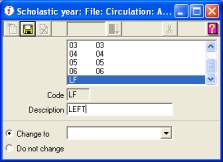
3. Create a ‘phantom’ scholastic year ‘LEFT’ (if one does not already exist).
Circulation, File, Scholastic Year, Add, LF –
Left, Save
Performing
the Borrower Update
1.
Move ALL students into the ‘phantom’
Scholastic Year named ‘LEFT’.
Circulation, Global Change, Scholastic Year,
Change one student scholastic year:
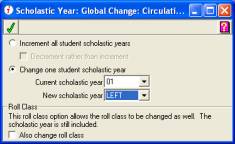
Repeat for all other scholastic years until all
students are in the Scholastic Year ‘LEFT’
Note:
The Borrower Import step below will change the Scholastic Year of any students
who are still attending back to their correct year. Students who have left the
school with outstanding loans will remain grouped together in the Scholastic
Year ‘LEFT’.
2. Export
Student data from SAS
Maintenance, Export, Student
Alice.
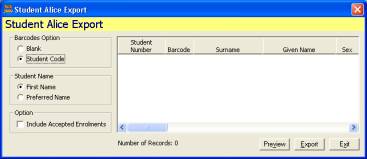
Barcodes
Option:
-
Blank if you want Alice to allocate borrower barcodes in the format
B00001 9999
-
Student Code if you want the borrower barcode to be the same as the SAS
Student Code e.g. 873456
Click
Export
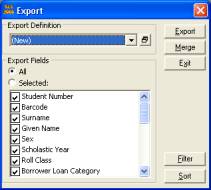
Note: Do NOT untick any fields as this will
cause any following fields to be loaded into the wrong place in Alice.
Click Export.
Save the file to a USB thumb drive
or a network drive with the name Student.txt
Note: Leave the file export format
as CSV. Do NOT change it to Text.
The data in the file should look
like this:
"02026",,"Hood","Martin","M","6","6D","",,,19960426,"9","Simpson
Place","Simpson","NSW","","2999","99999999","02026","Mr
& Mrs Hood",,"","",""
3.
Automatically update SAS
Student IDs into Alice
If you are sure that every student has their SAS Student ID already stored in Alice, you can skip this step.
If SAS Student IDs have NOT been entered into Alice borrower records, you MUST PERFORM this step. If you don’t, then all existing borrowers will have a second borrower record created in Alice.
Follow this link for details: Check Alice Borrowers
4. Import
Student Data into Alice
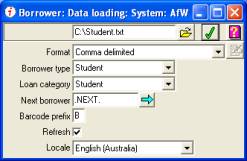
System, Data Loading, Borrower.
·
Select the file
exported from SAS, Student.txt by clicking on the yellow folder icon.
·
Select other
options as shown above.
·
Click the Green
Tick to pre-load the borrower data.
· Do an AfW Shutdown to actually load the borrower records and archive the changes.
· Review the newly added borrower records using Circulation, File, Borrower.
· Establish Loan Limits for the new borrowers using Circulation, Global Change, Limits or by editing each borrower record individually.
· If necessary, change Borrower Loan Category using Circulation, Global Change, Loan Category.
Issues:
- Borrower data is not actually loaded into Afw until an Afw
Shutdown is performed.
- The Shutdown will force a data archive which may take quite some
time for a large library
- Borrower records will be duplicated if
borrowers have been entered directly into AfW with no Student Code or an
incorrect Student Code. AfW uses the Student code to match student records
and will create a new borrower record if an Alice borrower with a matching
Student Code is not found.
- The green tick will not display unless
either a specific starting barcode is entered at ‘Next Borrower’ OR
the first letter used for Borrower barcodes is entered at ‘Barcode
Prefix’. Even if the import file contains SAS student codes as barcodes,
you still have to enter a ‘Next Borrower’ barcode, even though it will not
be used.
5. Troubleshooting
Refer to this page if you
experience any problems.
Last Updated: 5 February
2013